Create an Account
Step 1: Sign Up
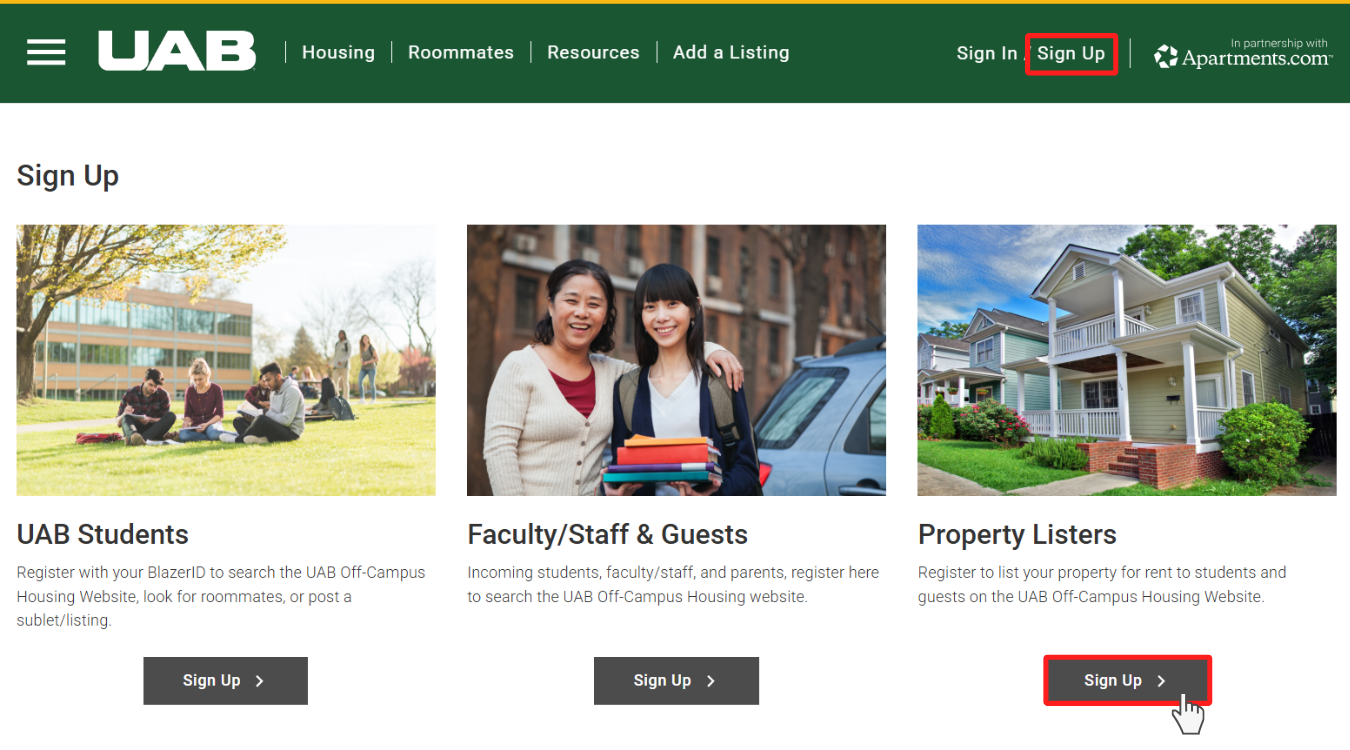
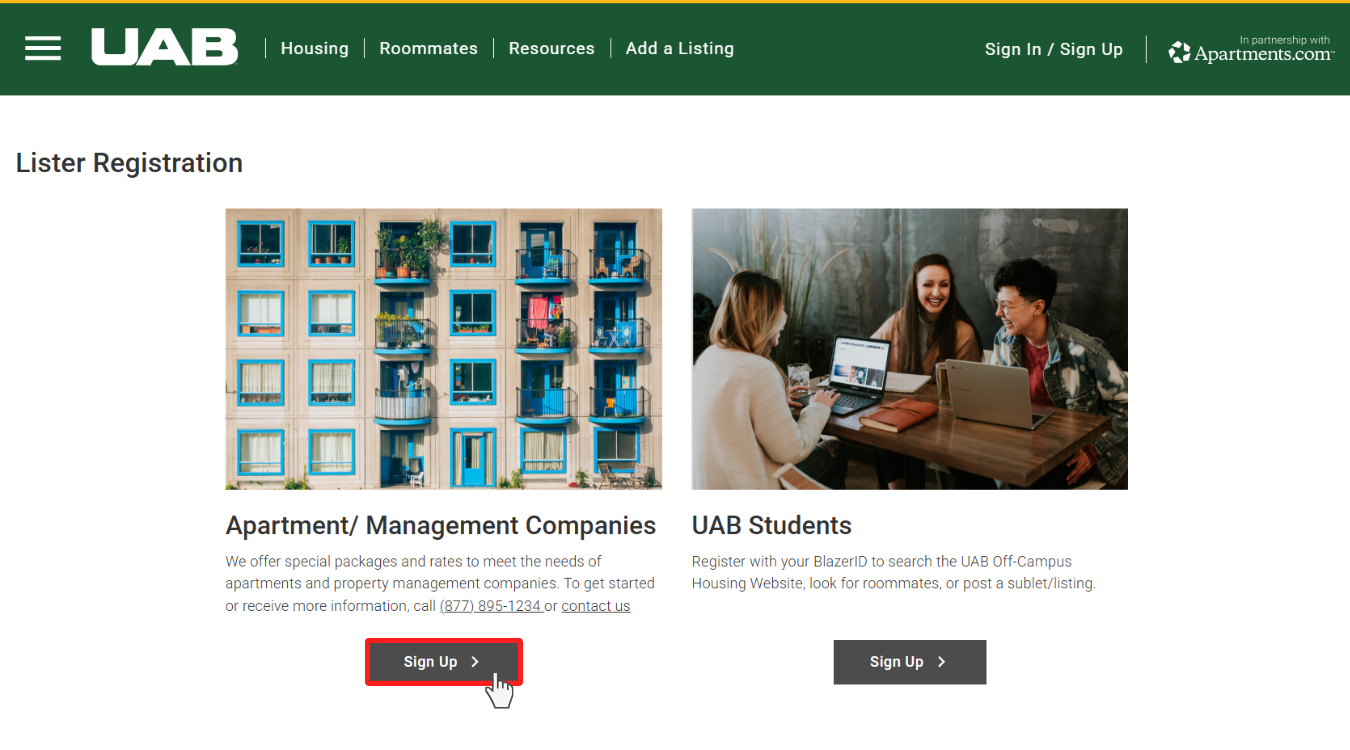

Tip: If you are a University affilliate, you can sign up as a student, faculty, or staff member and create one free listing.
Private Landlords
Independent property owners are not eligible to list their on this website. For information on listing options for individual student properties, please visit Apartments.com.
If you’re interested in our packages for apartment complexes or property management companies, or if you have any questions, please submit a registration form and a sales representative will be in touch shortly.
Step 2: Enter Your Information
Complete the Registration Form
To begin, enter a Username and Password.

Password Requirements
Your password must be at least 8 characters long and include at least 3 of these 4 types of characters:
- An uppercase letter
- A lowercase letter
- A number
- A special character: !@#$%^&*
Password Security Tips
- Avoid Common Information: Don’t use easily guessable information like your name, birthdate, common phrases, or consecutive numbers.
- Be Unique: Do not reuse a password associated with other website accounts.
- Avoid Dictionary Words: Avoid using whole words that can be found in dictionaries, as automated tools can easily guess common words.
Enter Your Contact Information
Enter your current address and phone number in the Contact Information fields.
Required Information
Note: Your account contact information is separate from your listing contact information. Potential renters will only be able to view the information you share in your listing Contact Settings (under My Listings > Edit > Contact). To learn more, please visit Manage Account Settings.
Complete Registration
After reviewing and agreeing to the Terms of Service, click Register at the bottom of the page.
Step 3: Confirm Your Email
To complete registration and ensure you receive emails about your account, you must first verify your email address by following the steps below:
- Go to Account Settings
- Select Email Addresses from the navigation menu on the left
-
If your email address is marked as Unverified," click "Resend verification" on the right:

- You'll receive a verification email sent to the email you used during registration.
Once you've clicked "Verify now" in the email, you will notice your email address is no longer marked as "Unverified."

Have Questions?
We're here to help. Please contact customer support for further assistance.